

Soulution 1: Maximize/Move the Program From the Taskbar
The easiest way to solve the matter of “program is running but not showing on the screen” is to use the feature of Maximize or Move in the Windows taskbar. This method is only valid for programs that are not full-screen.
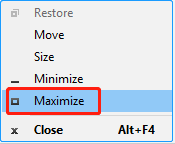
Use the feature of Maximize:
Press and hold the Shift key, then right-click the stuck program in the taskbar to click Maximize. Now the program should display on your screen.
Use the feature of Move:
Press and hold the Shift key, then right-click the stuck program in the taskbar to click Move.
Use the arrow key on your keyboard to move the program until it is showing on the screen.
Solution 2: Use “Show Open Windows”
According to the information on the internet, you can use the Show open windows option in the taskbar when an application is open but not visible.
Right-click the blank area in the taskbar and select Show the desktop.
Then right-click an empty space on the taskbar to select Show open windows.

Repeat the operations several times and then try to open your stuck program to check whether it is visible on the screen.
Solution 3: Change Display Settings
You might also get rid of “program is running but not showing” by changing the display settings if you’re using two monitors. Here is how to do that.
Press Windows + I key combinations to open Settings and go to System > Display.
Expand Multiple displays and uncheck Remember window locations based on monitor connection.
Restart your computer to check whether the issue has been solved.