

How to CLEAR HISTORY in your iPhone / iPad Safari Browser
Follow the steps below to clear your browser history and website data on your iPhone / iPad:
Open the Safari browser
Tap the Book icon (top right of screen on iPad / bottom of screen on iPhone)
Go to the History tab (clock icon)
Tap CLEAR
Select how the timeframe for far back to clear
Tap the red CLEAR HISTORY button
Read on to see full illustrated instructions.
1. In Safari, tap the book icon

Firstly, open Safari and tap the book icon in the bottom bar.
2. Select the history tab (clock icon) and tap Clear
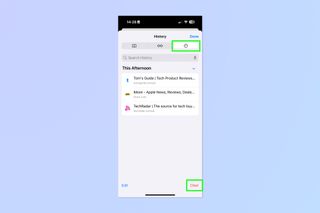
Now select the history tab (clock icon) and tap Clear at the bottom.
3. Select how far back to clear and tap Delete
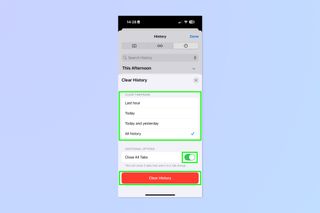
Now choose how far back you'd like to delete: last hour, today, today and yesterday, or all time.
If you like, you can toggle on Close All Tabs, which will close every open tab that isn't in a tab group (we can show you how to use tab groups if you aren't sure).
Finally, when you're happy, hit Delete.
An alternate method is to follow these steps:
Click on the SETTINGS app on your iPad or iPhone
Click on APPS
Scroll down to SAFARI and click on in
Scroll down and click on CLEAR HISTORY AND WEBSITE DATA
Select the appropriate timeframe
Click on the red CLEAR HISTORY button